The Apple Creator Studio AI usage limits have become a hot topic among content creators and developers. When Apple announced the subscription bundle, it stated that subscribers could generate at least 50 Keynote presentations per month using AI features. However, recent user experiences suggest that the real limits may be far lower than those published figures.
This article explains what’s going on, how these AI limits actually function, and where you can check your current usage right now.
What Apple Officially Says About AI Usage Limits
According to Apple’s support document, AI-generated content — including images, slides, and presenter notes — has built-in monthly limits. Under normal conditions, subscribers should be able to:
These limits reset each month and apply across Keynote, Pages, and Numbers when using Apple Intelligence tools bundled with Apple Creator Studio.
Why Real-World Use May Be Lower Than Expected
While Apple advertises high thresholds, real users — including developers like Steve Troughton-Smith — report drastically different results. In one case, a single Keynote presentation consumed nearly half of a user’s monthly allowance, indicating that two presentations might exhaust the entire AI quota rather than 50.
This suggests that the actual number of usable AI slides or images depends on factors such as:
Slide complexity,
Image rendering load,
How Apple calculates usage internally.
In other words, simple slidesets might be less costly, while complex ones with more visuals or detailed prompts could use far more of the monthly quota.
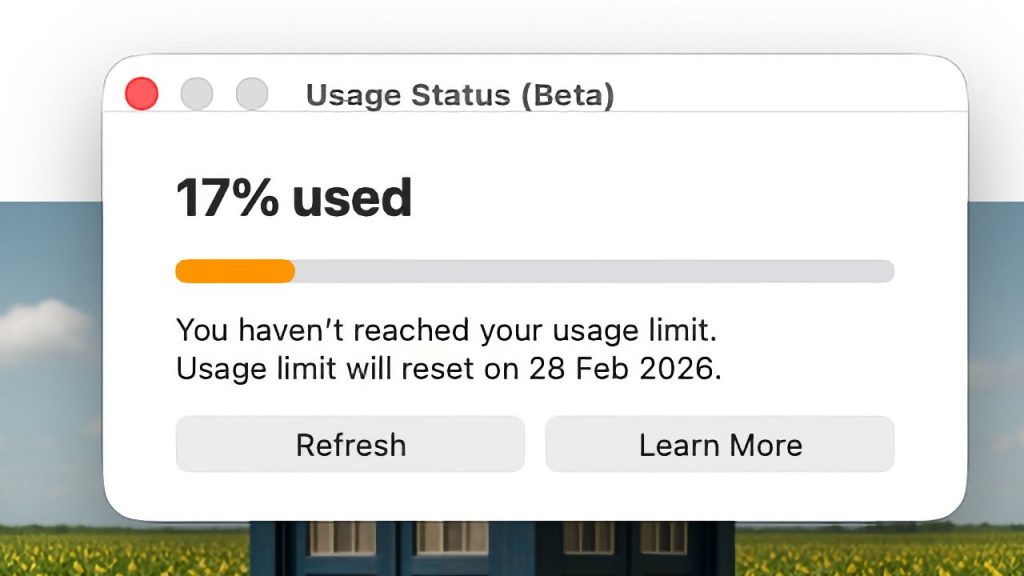
How to Check Your Apple AI Usage Status
Image Credit: Apple Insider
To see your current Apple AI usage and remaining quota:
On Mac:
Open Pages, Numbers, or Keynote.
In the menu bar, select Intelligence Features.
Click Show Usage Status.
On iPhone or iPad:
Open the relevant app (Pages, Numbers, or Keynote).
Tap the More (…) button.
Choose Intelligence Features → Show Usage Status.
This allows you to see how much of your AI budget has been used and how much remains for the rest of the month.
What This Means for Creators
Even though Apple intended to offer generous AI features to Creator Studio subscribers, your AI usage limit may feel restrictive depending on how you employ the tools. If you rely heavily on slides with images or rich content, you could hit your quota far sooner than if you generate simple text or code.
For creators who plan large or frequent AI-assisted projects, you may need to plan your usage more cautiously, test limits early in the month, or break projects across multiple months to stay within your allocation.